Home How to Unlock an EXE and Restore Access
How to Unlock an EXE and Restore Access
Your password is entered in the manager. A locked original EXE does not display a password prompt.
Need to decrypt an older file? Keep the historical tool and password.
Version 8.1.0 locks local EXE permissions. It does not decrypt files created by the historical general-file encryption product. Keep the original legacy tool and password. Read the version compatibility guide.
Restore Access in the Manager
- Open Free EXE Lock and enter the management password to unlock the manager.
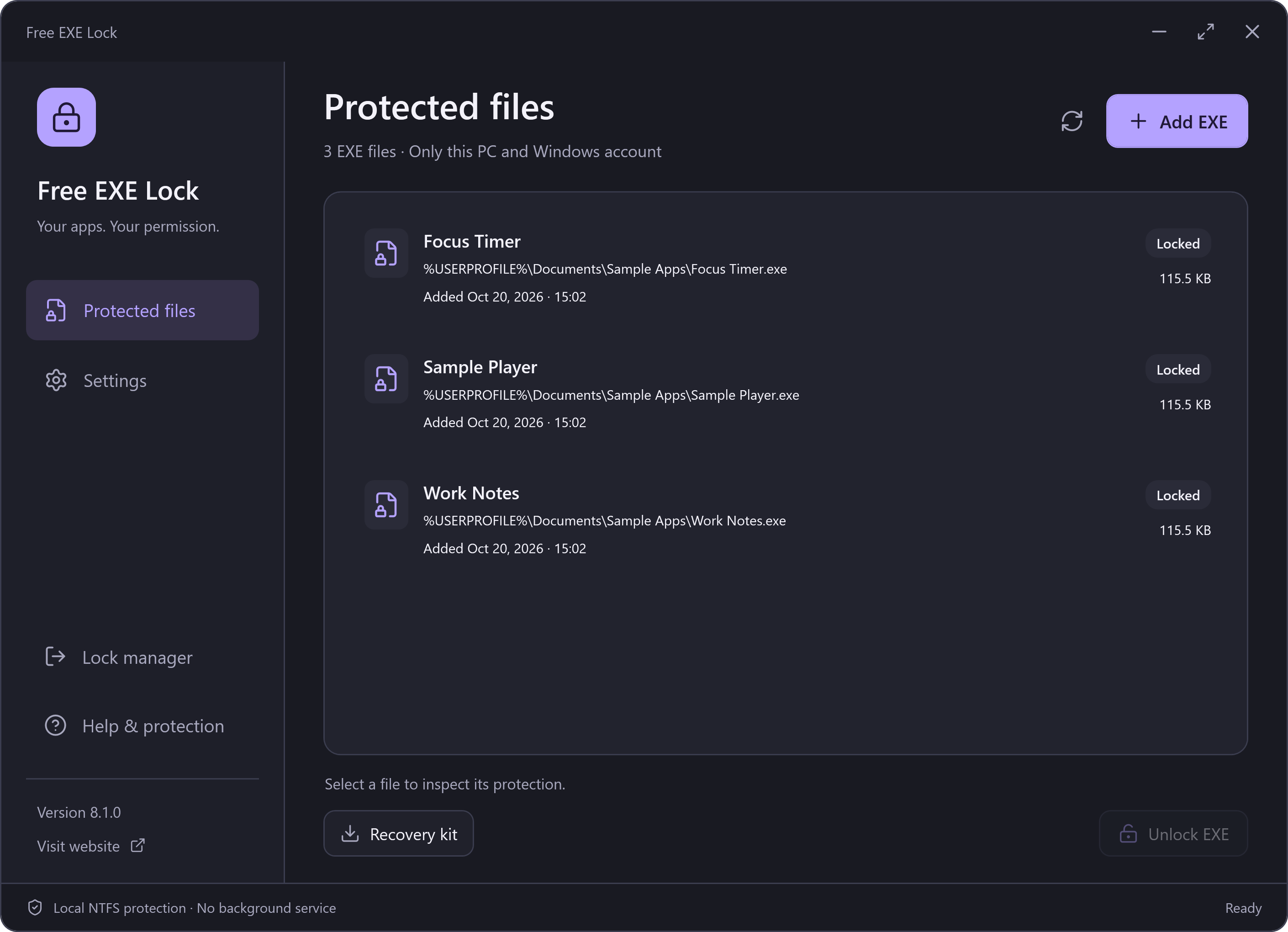
- Select the file on the Protected files page. Read its current status and path.
- Choose Unlock EXE. Enter the management password again in the password dialog.
- Wait for the result. If access was restored, you can open the program yourself when you choose. The manager does not run it automatically.
If the File Moved
An entry marked Missing retains its recovery information. Choose Locate & unlock and select the same original file. The file picker can show all file types if the extension changed. The manager verifies file identity before restoring permissions; it will not apply an old file’s permissions to an unrelated replacement.
If the Content or Folder Changed
When identity and the expected lock permissions still match, the manager can restore access even if that same file’s contents changed. It shows a visible warning if its original SHA-256 no longer matches or could not be verified. Check the software’s source before running it.
Unlocking restores the saved explicit permissions and lets Windows apply inheritance from the current parent folder. Moving to a folder with different permissions can therefore change inherited access.
If Permissions Were Changed Elsewhere
Refresh the list first. The manager retains the encrypted record and refuses to overwrite permissions changed by another application or administrator. Do not delete the vault or repeatedly replace files while investigating. Keep a recovery backup and the matching password.