Home Keep an Encrypted Recovery Backup
Keep an Encrypted Recovery Backup
A backup preserves recovery records. It does not reset or reveal a forgotten password.
Download Free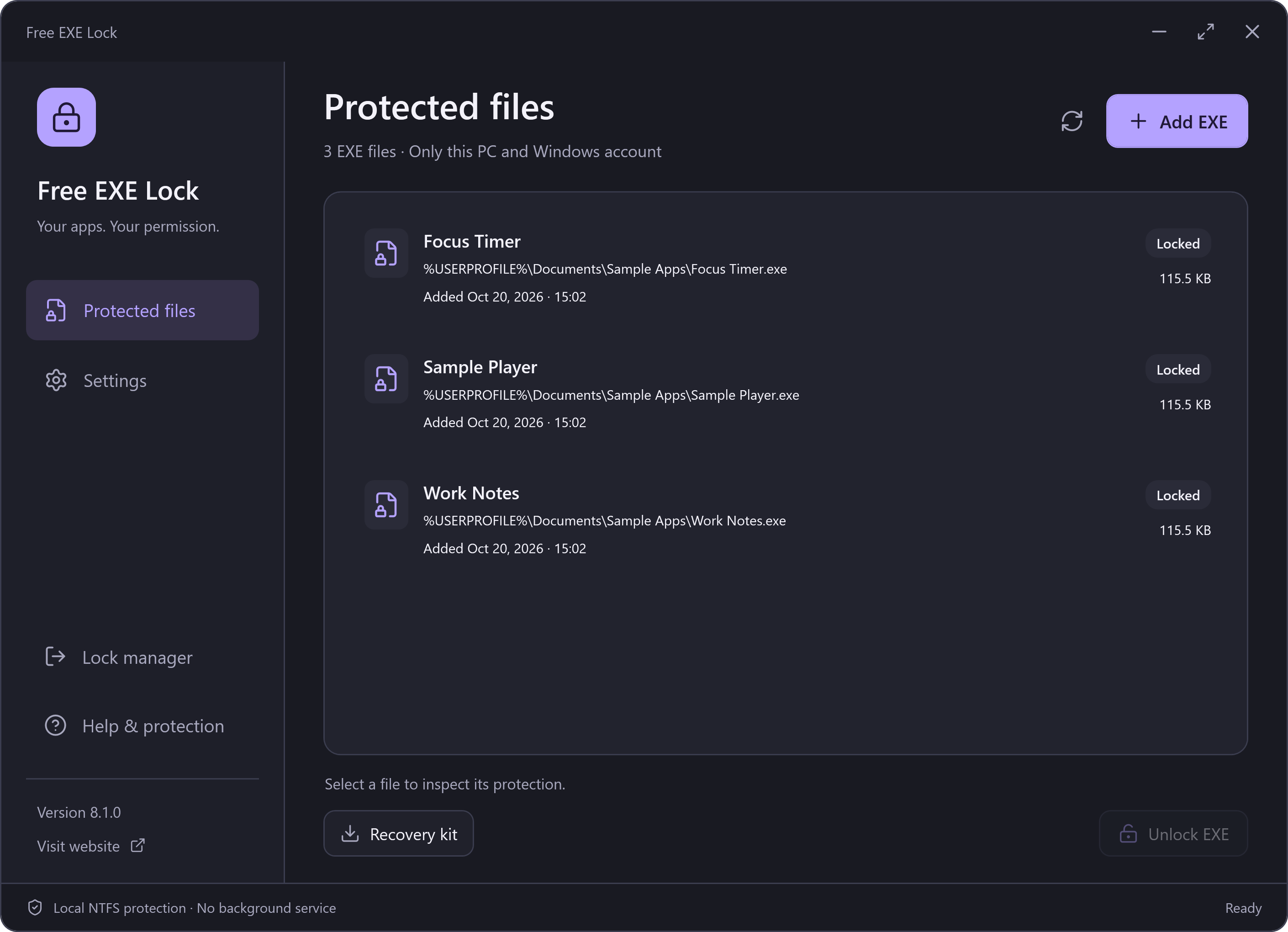
Export a Recovery Kit
- Unlock the manager with your management password.
- Choose Recovery kit on the Protected files page. Verify the same password again.
- Choose a safe location outside the vault folder. Use a new filename; existing kits are not overwritten.
- Keep the kit and its matching password safe. Export a fresh kit whenever the protected list or password changes.
Keep the Right Password
A recovery kit is an encrypted snapshot of the protection records. It still needs the password used when that kit was exported. An old kit does not contain later entries; do not overwrite a newer vault with an older snapshot.
Changing your current management password does not change old exported kits. Those older files still require the old export-time password. New exports use the new password.
If Local Settings Are Lost
Do not delete or replace any surviving vault until you know which backup contains the required entries. The encrypted kit uses the same vault format; a copy can be used as the vault in a separate recovery data directory, keeping the original backup untouched. Follow the supplied recovery instructions and use the same Windows account. If needed, see the separate-directory recovery steps.
Before Moving, Updating or Uninstalling
Unlock protected EXEs before changing their installation or uninstalling the manager. Removing the app or deleting its settings does not remove Windows file permissions. If a path is missing, use Locate & unlock for the same original file.
This lock applies to one selected file and the current Windows account on this PC. It does not control other copies, other accounts or an administrator, and it does not encrypt the program or its private data.