Home How to Lock an EXE on Windows
How to Lock an EXE on Windows
Close the target app first, then use Add EXE to protect the file for your current Windows account.
For historical encrypted files, read version compatibility first.
Version 8.1.0 locks local EXE permissions. It does not decrypt files created by the historical general-file encryption product. Keep the original legacy tool and password. Read the version compatibility guide.
1. Create Your Management Password
On the first launch, enter a password with at least 8 characters and confirm it. This password opens your manager and is required again when you restore an EXE. Keep it safe; an encrypted backup is not a forgotten-password reset.
2. Close the App and Select Its EXE
- Close the application yourself and save any work. The manager does not terminate running programs.
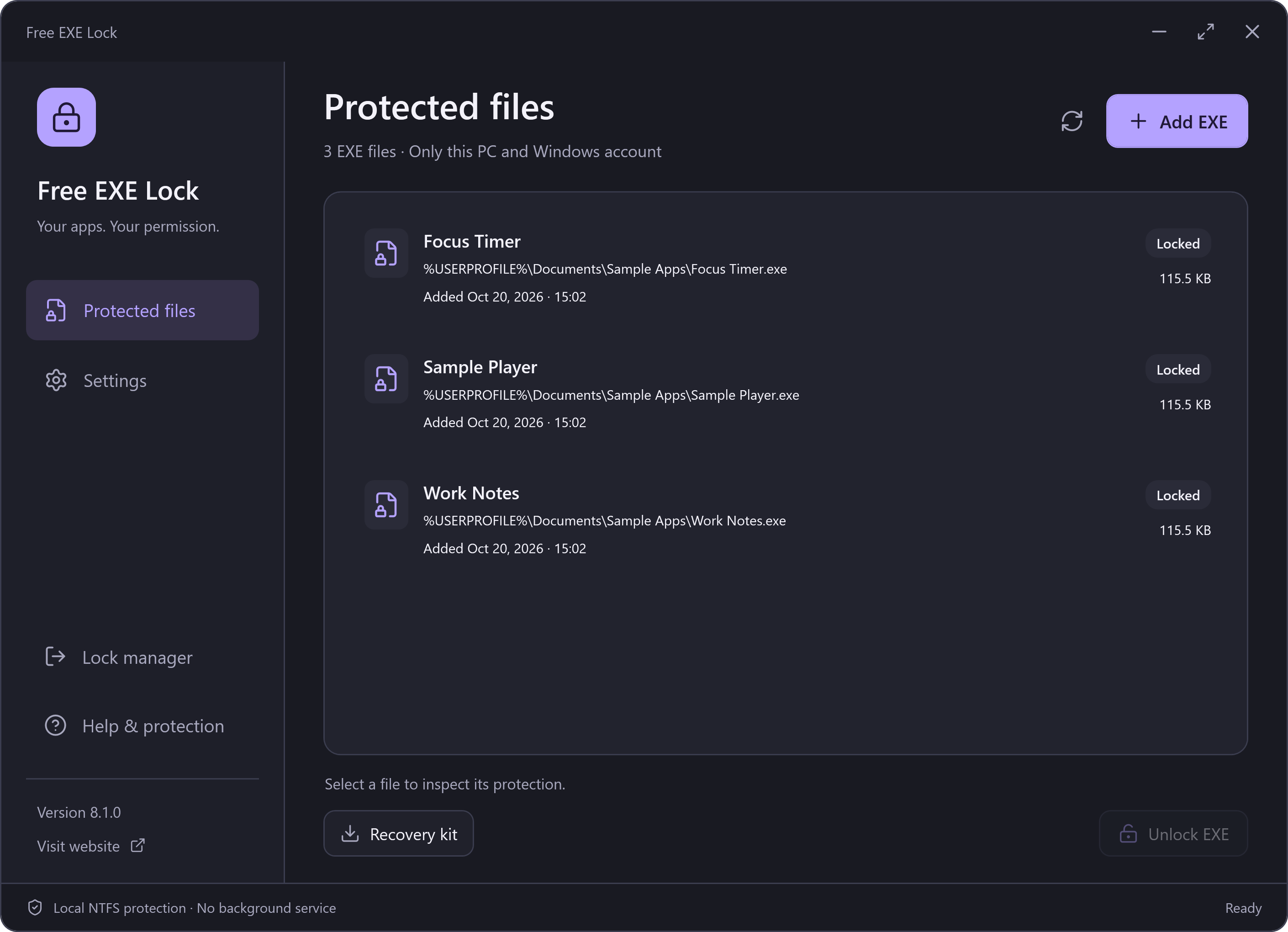
- Choose Add EXE on the Protected files page. Select a local .exe on an NTFS volume.
- Read the confirmation: this account will be denied reading, copying and running the selected file. The EXE contents will not be changed.
- Confirm that you closed the app, then choose Lock EXE. Wait for the success message and check the actual status in the list.
3. Export Your Recovery Kit
Choose Recovery kit and verify your password. Save the encrypted backup outside the local vault folder. Keep the password that was current at the time of export. Export a new kit after adding or removing records or changing the password.
Which EXEs Can Be Locked?
This release supports suitable local NTFS files. It rejects Windows/system and security software, the manager itself, links, network locations and unsupported permissions or file identities. If a file in Program Files needs elevated access, the manager can offer a button to reopen with your permission; it does not elevate automatically.
This lock applies to one selected file and the current Windows account on this PC. It does not control other copies, other accounts or an administrator, and it does not encrypt the program or its private data.
What Happens Next?
Windows denies access if this account tries to read or launch the locked EXE. The lock remains if you exit the manager. To use the app again, follow the unlock guide.