Home Update, Move or Uninstall Safely
Update, Move or Uninstall Safely
Restore file access before changing an app’s installation.
Download Free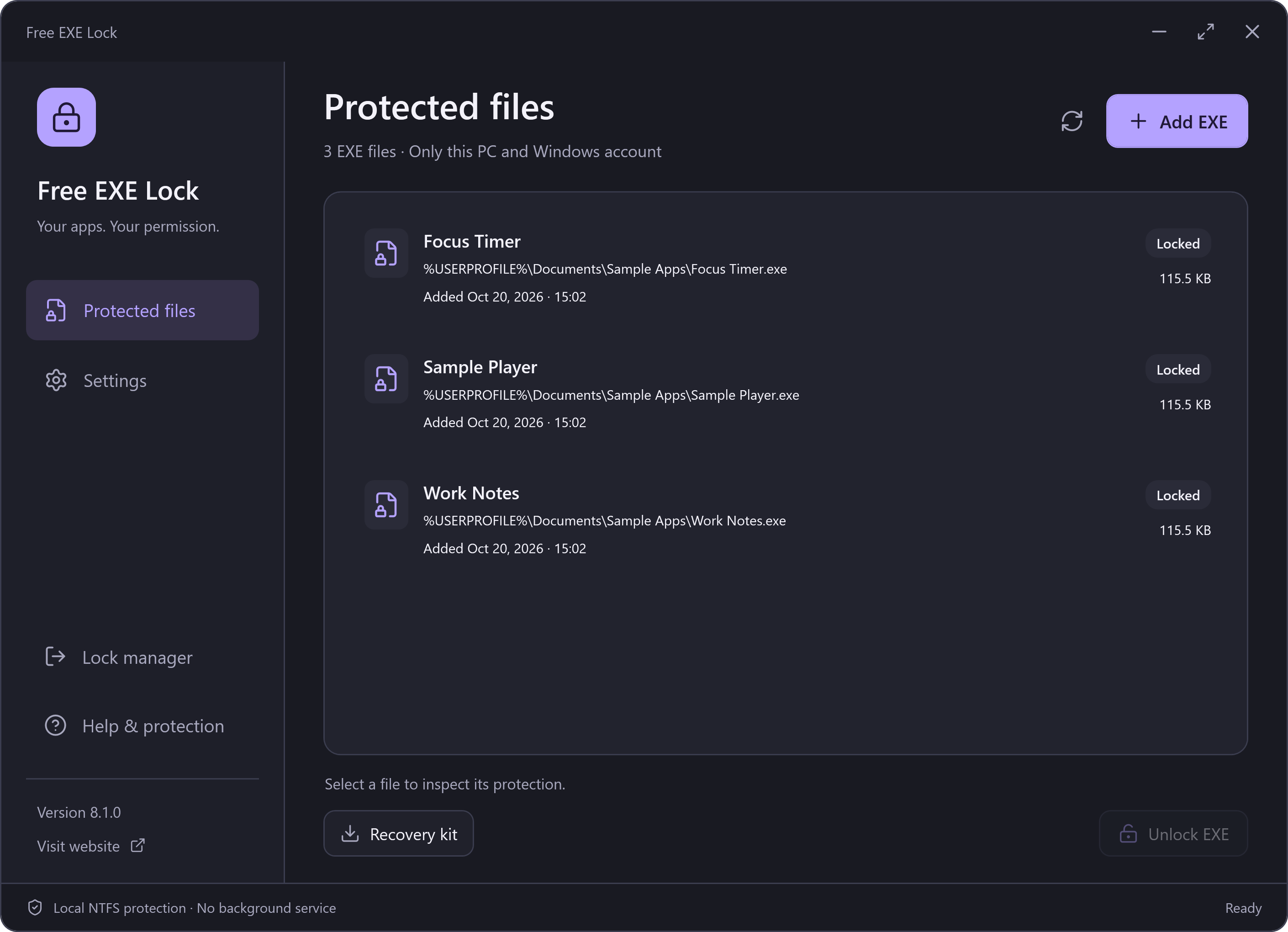
Before Updating a Protected App
- Open the manager and select each affected EXE.
- Choose Unlock EXE and verify the management password.
- Confirm that access was restored, then update the application normally.
- If you still want it locked, add its new EXE again and export a fresh recovery kit.
Before Moving a File or Folder
Unlock first when possible. If an already-locked original file moved, use Locate & unlock; the manager verifies the same file identity. A copied or replaced file is not the same object. Current parent-folder inheritance applies after restoration.
Before Uninstalling Free EXE Lock
Unlock every protected EXE and check the remaining list. Each successfully opened profile, including a recovery folder opened with --data-dir, is registered locally for the safe-uninstall check. Uninstall verifies the password and zero remaining records for every registered profile before removing the application.
Keep each profile folder and its vault available until these checks finish. If a registered profile or its directory catalogue is missing or damaged, the uninstaller keeps the application so recovery data can be investigated. Deleting the program, its settings or the catalogue is not an unlock method. Keep an encrypted recovery kit with its matching password.
RelevantKnowledge Is Separate
If you accepted the optional research software, manage or remove it separately in Windows Settings → Apps. Uninstalling Free EXE Lock does not automatically remove that independent installation. See the optional invitation notice.