Home Themes and brand.ini
Themes and brand.ini
Make the interface comfortable without changing how file protection works.
Download Free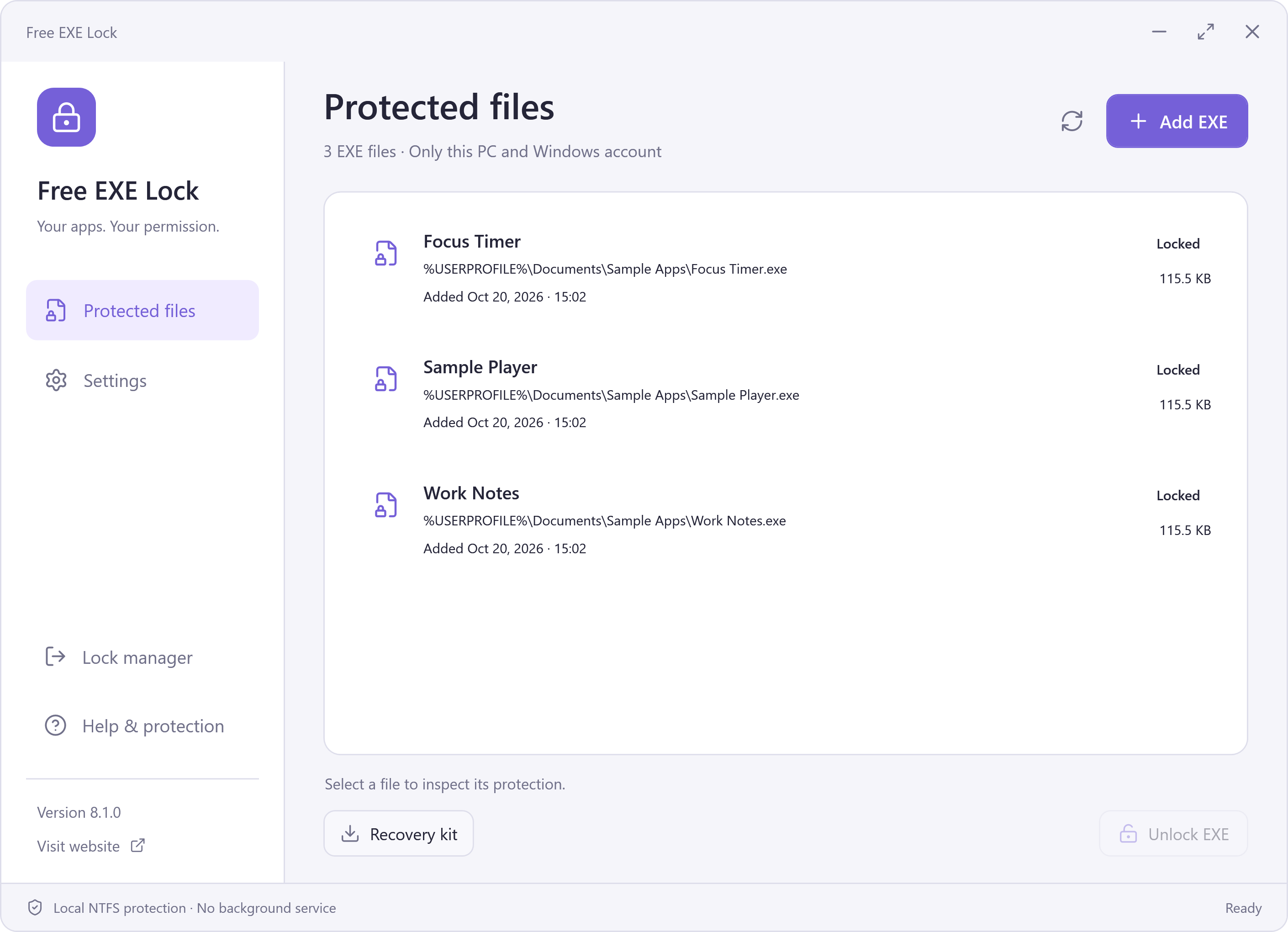
Switch the Theme
Open Settings → Appearance and choose Dark or Light. Dark is the default for a new profile; the selected theme is saved on the PC. The screenshots page shows both actual themes.
The Included brand.ini
The configuration beside the application can set its displayed name, tagline, website URL and default theme. Existing saved theme preferences take precedence over the default. Retain a valid HTTP or HTTPS website URL and restart the app after editing branding.
[Brand]
Name=Free EXE Lock
Tagline=A little privacy. A little peace of mind.
WebsiteUrl=https://www.freefilelock.com/

[Appearance]
DefaultTheme=dark
Branding Is Separate from Protection
Changing a label does not change an EXE’s permissions, encrypt target data or make the manager resist administrators. Keep product identity and website links accurate for the people using your build.